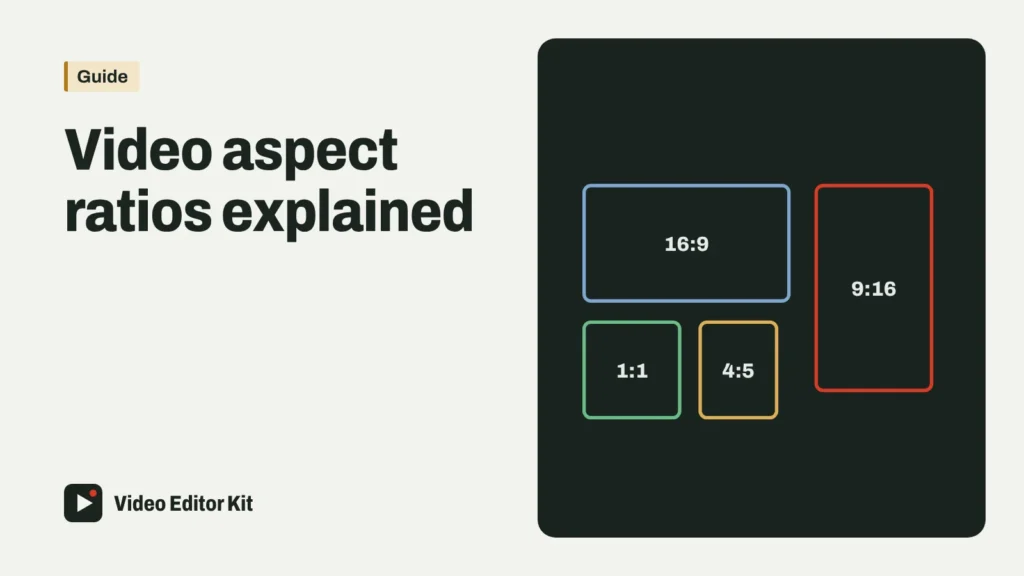
Aspect ratio is the shape of the picture: its width compared with its height. 16:9 means 16 units wide for every 9 units tall. It says nothing about how sharp the video is. A small 16:9 video and a huge one have the same shape.
Getting the shape wrong is why videos show up with black bars, or with someone's head cut off.
The common shapes and their sizes
| Ratio | Shape | Standard size | Where it's used |
|---|---|---|---|
| 16:9 | Wide | 1920 × 1080 | YouTube, TVs, laptops, presentations |
| 9:16 | Tall | 1080 × 1920 | TikTok, Instagram Reels, YouTube Shorts, Stories |
| 1:1 | Square | 1080 × 1080 | Feed posts, profile video |
| 4:5 | Slightly tall | 1080 × 1350 | Instagram feed posts |
| 4:3 | Classic | 1440 × 1080 | Old TV footage, some tablets |
| 21:9 | Extra wide | 2560 × 1080 | Cinematic look, ultrawide monitors |
Why 9:16 took over on phones
People hold phones upright. A tall video fills the whole screen. A wide video on the same phone uses about a third of it. On apps built around scrolling, the video that fills the screen gets watched.
4:5 exists for the same reason. In a feed, it takes more of the screen than a square, and far more than a wide video.
Three ways to change the shape
You can't turn a wide video into a tall one for free. Something has to give, and you choose what.
Crop
Cropping cuts away the sides. The subject fills the frame and looks close. You lose whatever was at the edges, so it works when the action is in the middle. A wide shot of two people talking from opposite sides will lose one of them.
Add a background
The whole video is kept and placed in the middle of the new shape. The empty space is filled with a blurred copy of the video or a plain color. Nothing is lost, but the video is smaller on screen. This is the safe choice for footage you can't re-shoot.
Stretch
Stretching pulls the picture to fit. People look too thin or too wide. Avoid it, apart from tiny corrections nobody will notice.
How to change the aspect ratio
To cut the frame to a new shape, use Crop Video. Choose a shape such as "9:16 Vertical" and drag the box over the part you want to keep.
To keep the whole picture and fit it to a platform, use Resize Video:
- Add your video.
- Under "Resize for", choose the platform, for example TikTok or Instagram post.
- Under "Fill the frame with", choose Blurred background, Solid color or Crop to fill.
- Press Resize video.
Both tools run on your device, so the video is not uploaded.
If the video is sideways
A video that plays on its side is a rotation problem, and cropping won't fix it. Use Rotate Video to turn it 90 degrees, then check the shape again.
Shooting for more than one shape
If a video will go to both YouTube and a tall format, film wide and keep the subject in the middle third of the frame. That leaves room to crop a tall version later without losing anyone.
Keep text and faces away from the top and bottom edges of tall video. Apps place their buttons, captions and usernames there.
Common questions
Is aspect ratio the same as resolution?
No. Resolution is how many pixels there are, like 1920 × 1080. Aspect ratio is the shape those pixels make. 1920 × 1080 and 1280 × 720 are different resolutions with the same 16:9 shape.
What happens if I upload the wrong shape?
The platform adds bars or crops your video for you, and it doesn't know where your subject is. Setting the shape yourself gives a better result.
Does changing the shape lower quality?
Cropping removes pixels, so the remaining picture is enlarged to fill the frame and can look softer. Starting from 4K or 1080p footage leaves plenty of detail after a crop.