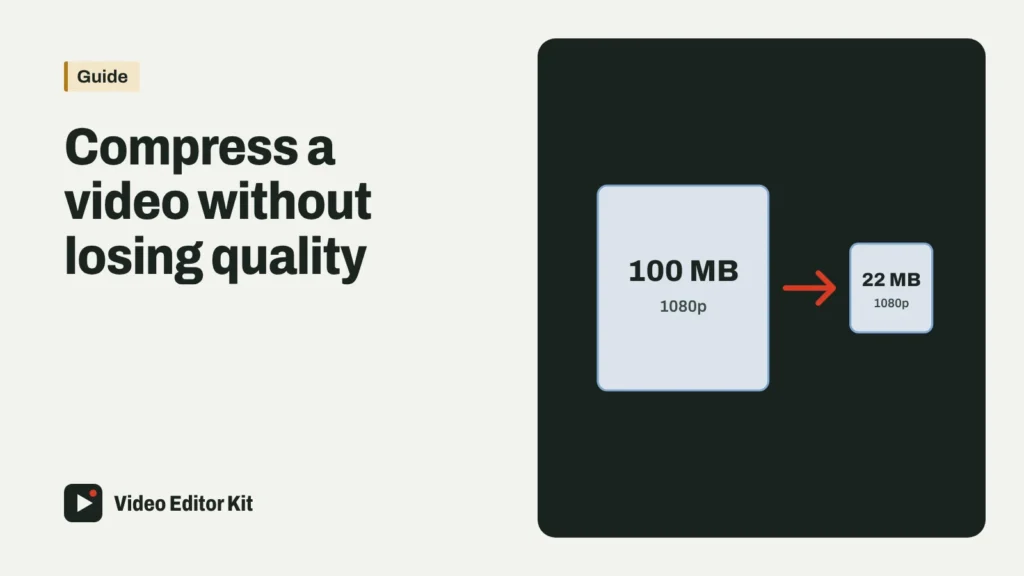
A one minute clip from a modern phone can be 100 MB or more. Most of that size is detail nobody will see on a phone screen or in a chat window. Compressing a video means throwing away the detail people can't see and keeping what they can. Do it in the right order and the result looks the same to almost everyone.
What decides the size of a video file
File size comes down to one sum: bitrate multiplied by length. Bitrate is how much data the video uses for each second. A 60 second clip at 8 Mbps is about 60 MB. The same clip at 4 Mbps is about 30 MB.
Three things push bitrate up or down:
- Resolution. A 4K frame has four times the pixels of a 1080p frame.
- Frame rate. 60 frames a second needs more data than 30.
- How hard the encoder works. A slower encode squeezes the same picture into fewer bits.
So you have three levers, and the order you pull them in matters.
Change resolution first
If your video is 4K and it will be watched on a phone, drop it to 1080p. This is the biggest saving you can make and the hardest one to notice. Most phones can't show 4K detail anyway, and chat apps shrink video when they send it.
Going from 1080p to 720p is also fine for screen recordings, talking head clips and anything sent in a message. Keep 1080p for video that will be watched on a TV or a large monitor.
Then frame rate
Video shot at 60 fps looks smooth, which matters for sport and games. For a person talking, a tutorial or a family clip, 30 fps looks the same. Halving the frame rate does not halve the file, but it does take a good piece off.
Then the quality setting
Once the resolution and frame rate are sensible, lower the quality a step at a time. Fast movement, water, grass and confetti show damage first. A person sitting at a desk can take heavy compression before it shows.
A simple test: compress, then watch the busiest five seconds of the result at full screen. If that part looks fine, the rest will.
How to compress a video in your browser
The Video Compressor does all of this on your own device. The file is not uploaded anywhere.
- Open the tool and add your video.
- Leave "Compress by" on Quality, and "How much smaller" on Balanced.
- Set Resolution to "Up to 1080p", or "Up to 720p" if the video is for a phone.
- Leave Frame rate on "Up to 30 fps" unless the clip is sport or gameplay.
- Press Compress video, then check the result before you delete the original.
If the file is still too big, move "How much smaller" to "A lot" and try again. If you need to hit an exact number, such as 25 MB for an email, switch "Compress by" to Target size and type the size in MB.
Which settings for which job
| Where the video is going | Resolution | Frame rate | How much smaller |
|---|---|---|---|
| Messaging apps | 720p | 30 fps | A lot |
| Email attachment | 720p | 30 fps | Target size |
| Social media upload | 1080p | Keep original | A little |
| Archive on your drive | Keep original | Keep original | A little |
Social sites compress your upload again on their side. Give them a clean file with light compression, because a heavily compressed file gets squeezed twice.
Mistakes that waste quality
- Compressing a file that was already compressed. Each pass loses a little. Always start from the original.
- Making a small video bigger. Upscaling 720p to 1080p adds size and no detail.
- Using "Smallest file" speed on a long 4K clip on a phone. It works, but it can take a long time. Use Balanced.
Common questions
Can a video be compressed with no quality loss at all?
Only by a small amount. True lossless compression of video saves very little. What people mean is loss you can't see, and that is realistic for most clips at half the size or less.
Why did my file get bigger?
The original was already tightly compressed, usually by a messaging app. Pick a stronger setting or a lower resolution, or keep the original.
How do I check what my video is right now?
Drop it into the Video Info Viewer. It shows the resolution, frame rate and bitrate, so you know which lever to pull. If only the frame rate is the problem, the frame rate tool changes that alone.