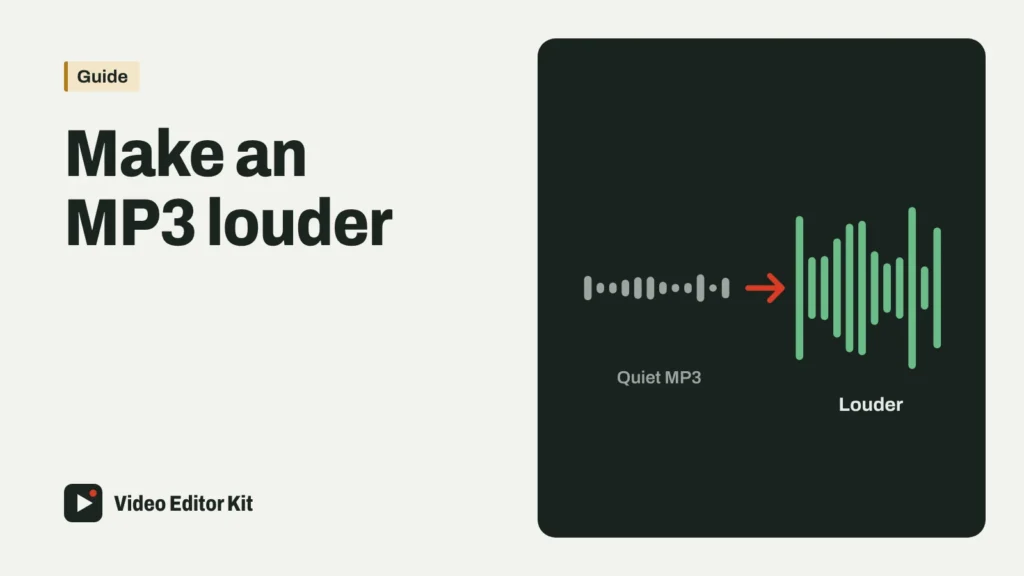
A quiet MP3 is annoying in a very specific way. You turn your phone up to full and still miss words. Then the next song plays at normal volume and nearly deafens you. Raising the volume of the file itself fixes that once, for every device it's played on.
It's a quick job, with one thing to watch: pushing too far makes the sound crackle, and that can't be undone.
Boost or auto level
Set volume
You choose how loud the file should be, as a percentage. 100% is the original. 200% is louder, and the tool goes up to 500%. Use this when you know roughly how much louder you want it, or when you want to make a file quieter.
Auto level
The tool measures the file and raises or lowers it to a standard loudness. It's the better choice when you don't know the right amount, or when you want several files to end up at the same level, such as a set of podcast episodes or songs for a playlist.
How to increase the volume of an MP3
- Open the MP3 Volume Booster and add your file. MP3, WAV, M4A, OGG and FLAC all work.
- Under "What to do", choose "Auto level", or choose "Set volume" and move the slider.
- If you chose Set volume, keep "Stop it from clipping" switched on.
- Choose the format and bitrate to save as. Matching the original is usually right.
- Press Change volume and listen to the loudest part of the result.
The file is processed on your device and isn't uploaded.
How loud is too loud?
Digital audio has a ceiling. When a boost pushes the loudest moments past it, the tops of the sound waves get cut flat, and you hear a harsh crackle on loud words and drum hits. That's clipping.
How far you can go depends on the file:
| The recording | Safe boost, roughly |
|---|---|
| A quiet voice memo or lecture | 200 to 400% |
| A podcast or interview | 150 to 200% |
| A song from a streaming service or CD | Little or none. It's usually loud already |
| An old or home-made recording | Try Auto level first |
"Stop it from clipping" holds the loudest peaks back while the rest comes up, so you can boost further before anything crackles. Leave it on unless you have a reason not to.
When only some parts are quiet
A recording of a meeting or class often has one person close to the phone and another across the room. A plain boost raises both, so the loud person becomes too loud while the quiet one becomes just audible.
Auto level handles this better, because it brings soft and loud parts closer together. For recordings like this, try it before reaching for the slider.
What boosting can't fix
Making a file louder raises everything in it, hiss, hum and room echo included. A recording made from far away will be louder afterwards and still sound far away. If the background noise is the problem, a louder file makes it more obvious, not less.
For the sound in a video, rather than an audio file, use the Video Volume Booster. The guide on fixing quiet video audio covers that in more detail.
Making several files match
If you're building a playlist or joining recordings, run each file through Auto level first, then combine them with the Audio Joiner. They'll all play at about the same volume. The guide on merging audio files explains the joining step.
Common questions
Does making an MP3 louder lower its quality?
The file is encoded again, which costs a tiny amount at normal bitrates. Clipping is the real risk, and the clipping guard prevents it.
Can I make an MP3 quieter with the same tool?
Yes. Choose Set volume and move the slider below 100%.
Will the file get bigger?
Only if you pick a higher bitrate than the original. At the same bitrate, the size stays about the same.