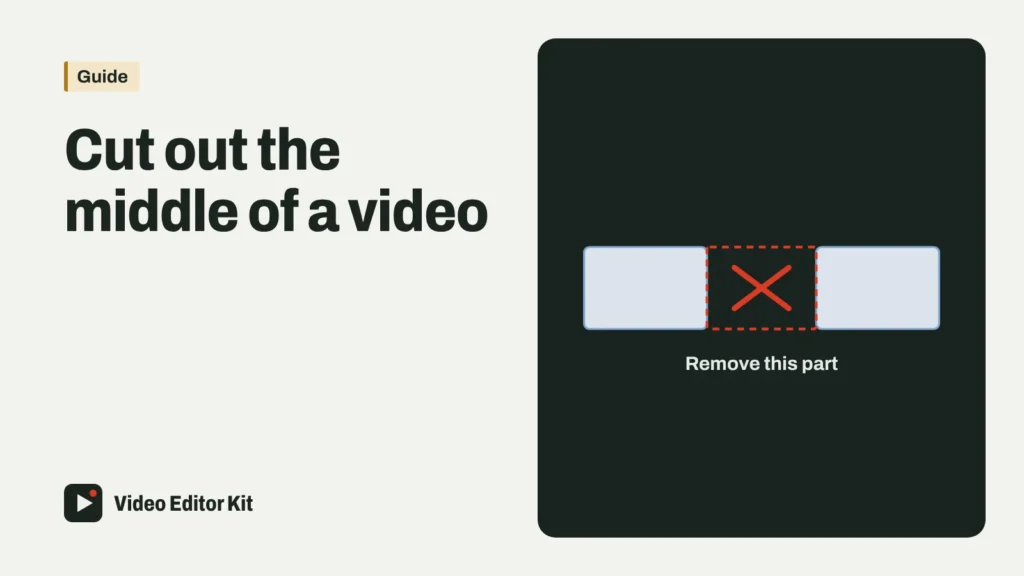
Most video tools make it easy to cut the beginning and end off a clip. Removing something from the middle is the job people actually need more often: a cough in the middle of a talk, someone walking in front of the camera, a phone ringing, a scene that shouldn't be in the video you're sending to family.
Cutting out the middle takes two cuts and one join. The tool below does all three in a single step.
How to cut a part out of the middle
- Open Cut Out Part of a Video and add your video.
- Play it and pause where the unwanted part begins. Press the button next to "Remove from" to copy that time from the player.
- Play on and pause where the unwanted part ends. Set "Remove until" the same way.
- Press Remove this part.
- Watch the area around the join, then download.
The video is processed on your device. It isn't uploaded, which matters when the part you're removing is the private bit.
Finding the exact cut points
The quickest way to land on the right frame:
- Pause near the spot, then drag the player's slider slowly back and forth until you're on the right moment.
- Cut in silence. Starting the cut in the gap before a word and ending it in the gap after a word sounds natural. Cutting in the middle of a word leaves half a syllable behind.
- Give a little room. Removing a few frames more than you think you need is safer than leaving the start of the thing you wanted gone.
Hiding the jump
When the camera doesn't move, the picture jumps at the join. Someone's head is in one place, then suddenly in another. This is called a jump cut.
In vlogs and talking videos, people are used to jump cuts and nobody minds. For anything more formal, you have a few options:
- Keep the cut short. Removing two seconds jumps less than removing two minutes.
- Cover the join with a title or a photo. In the Video Editor, place a picture on the track above the join for a second.
- Cut on movement. If the person turns their head or the camera pans, a cut there is hard to spot.
Removing more than one part
Each run removes one section. For two or three cuts, run the result through the tool again. For many cuts, use the Video Editor instead: split the clip at each point, delete the pieces you don't want, and the rest closes up on the timeline.
| What you want to remove | Best tool |
|---|---|
| The start or the end | Video Trimmer |
| One piece from the middle | Cut Out Part of a Video |
| Several pieces | Video Editor |
| Nothing, just split into files | Video Splitter |
Does it lose quality?
The cut is exact to the frame, so the video is encoded again. At normal settings you won't see a difference. If you also plan to compress the video, cut first and compress last, so it's only compressed once. The guide on trimming without losing quality explains why.
Common questions
Does the sound stay in step after the cut?
Yes. The same section is removed from the sound and the picture, so speech stays matched to lips.
Can I cut the middle out of a video on my phone?
Yes. The tool works in the browser on Android and iPhone. Setting the cut points is a little easier on a computer, where the slider is wider.
Will the people I send it to see that something was cut?
They'll see the jump if the camera didn't move. The cut part itself is gone from the file and can't be recovered from it.