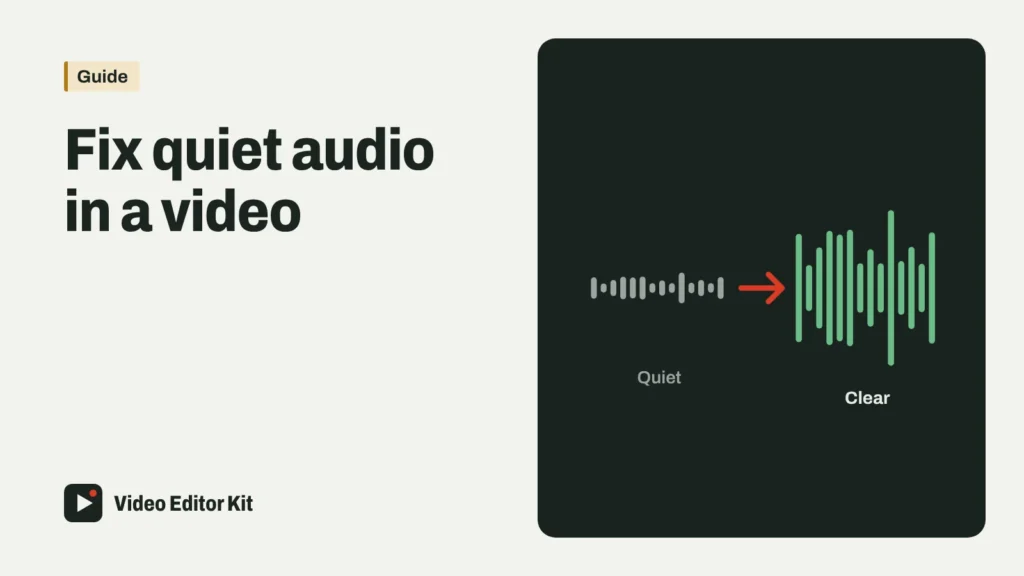
A video that's too quiet gets skipped. People turn their phone up to full, still can't hear, and move on. The fix takes a minute, and you don't need to understand audio engineering to do it well. You only need to know which of two tools fits your problem.
First, work out what's wrong
Play the video at your normal volume and listen for which of these it is:
- Everything is quiet, evenly. The microphone was far away or the level was set low.
- Some parts are quiet and others are loud. Two people at different distances, or someone who turns away from the microphone.
- The sound is noisy or distorted. Wind, a fan, crackling.
The first two can be fixed. The third mostly can't be, and the honest answer is to record it again or replace the sound.
Boosting and levelling
Set volume (boost)
This makes everything louder by the same amount. Quiet parts and loud parts both rise. Use it when the whole video is evenly too quiet.
Auto level
This measures the sound and brings it to a standard loudness. It works out the right amount for you. Use it when you aren't sure how much to add, or when you want several clips to match each other.
| Problem | Use | Why |
|---|---|---|
| Whole video is quiet | Auto level | Finds the right amount for you |
| You know it needs "about double" | Set volume | Direct control |
| Clips from different days don't match | Auto level on each | Brings them to the same loudness |
| Video is too loud | Set volume, below 100% | Turns it down evenly |
What clipping is, and how to avoid it
Digital sound has a ceiling. If you boost a recording so far that its loudest moments hit that ceiling, the tops of the sound waves are cut flat. You hear this as harsh crackling on loud words. That's clipping, and once it's in a file it can't be removed.
A boost has to stop where the loudest moment reaches the ceiling, even if the rest is still quiet. The "Stop it from clipping" option handles this for you. It holds back the loudest peaks so the rest can come up. Leave it switched on.
How to make a video louder
- Open the Video Volume Booster and add your video.
- Under "What to do", choose Auto level. Or choose Set volume and move the slider.
- If you chose Set volume, keep "Stop it from clipping" on.
- Press Change volume, then listen to the loudest part of the result.
Only the sound is changed. The picture stays as it was, and the file is not uploaded.
One thing boosting can't do is separate the voice from the noise. When you raise the volume, the hiss and the room echo come up with it. A recording made two metres from the microphone will be louder after a boost, and it will still sound far away.
When the sound can't be saved
Replace it
If the picture is good and the sound is useless, put new sound on top. Add Audio to Video lets you add music or a voice-over and choose "Replace it" for the original sound. You can record the voice-over with the Voice Recorder.
Mix it
To keep the original sound and add music underneath, choose "Keep and mix" and set the music well below the voice. A common mistake is music that's too loud. If you have to concentrate to follow the words, lower it.
Remove it
A clip of scenery with wind roaring across the microphone is better silent. Mute Video removes the sound from the whole video, or from only part of it.
Getting it right next time
- Get the microphone close. Halving the distance to the speaker does more than any setting.
- Record in a room with soft things in it: curtains, a sofa, a bed. Bare walls cause echo.
- Record ten seconds and play it back before the real take.
- Outdoors, turn your back to the wind so your body shields the phone.
Common questions
How loud should a video be?
Loud enough that speech is clear with a phone at about half volume. Auto level aims for a standard loudness that sits close to what video platforms use.
Can I fix audio that's already distorted?
Not really. Clipping and heavy wind noise are baked in. Lowering the volume makes it less painful, and that's about all.
I only have an audio file. Does this work?
Use the Audio Volume Booster, which has the same options for MP3, WAV and other audio files.