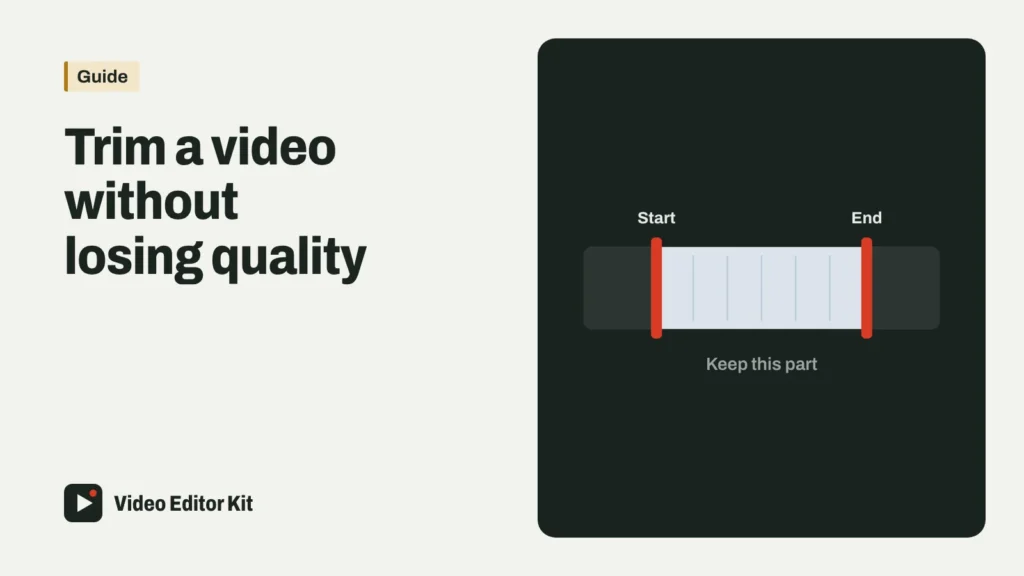
Trimming is the most common edit there is: remove the fumbling at the start and the walk back to the camera at the end. It can be done with no quality loss at all, but only if the cut is made in a certain way. Here is how that works and when to use it.
Trim, cut and split mean different things
- Trim removes the start, the end, or both. You keep one piece from the middle.
- Cut removes a piece from the middle and joins what's left.
- Split divides one video into several files and keeps all of them.
They sound alike, and each has its own tool, so it's worth picking the right word before you start.
Two ways to make a cut
Instant cut
The video data is copied as it is. Nothing is compressed again, so the result is identical to the original, and it finishes in a second or two even for a long file.
There is one limit. Video is stored as a full picture every second or two, called a keyframe, with only the changes saved in between. An instant cut can start only on a keyframe. So the result may begin up to a couple of seconds before the point you chose.
Exact cut
The video is decoded and encoded again, which lets the cut land on the precise frame you picked. It takes longer, and because the video is compressed a second time there is a very small quality loss. At normal settings you won't see it.
| Instant | Exact | |
|---|---|---|
| Speed | Seconds | Depends on length |
| Quality | Identical to original | Very close |
| Cut lands on | Nearest keyframe before | The exact frame |
| Use it when | A second of slack is fine | Timing must be precise |
How to trim a video
- Open the Video Trimmer and add your video.
- Set Start to where the good part begins.
- Set End to where it stops.
- Under "Cut type", choose Instant for no quality loss, or Exact for a precise cut.
- Press Trim video.
A handy habit: try Instant first. If the result starts a little early and that bothers you, run it again on Exact. Everything happens on your device and the file is not uploaded.
Removing a piece from the middle
To take out a mistake, a pause or an interruption in the middle of a clip, use Cut Out Part of a Video. Set "Remove from" and "Remove until", and the two remaining parts are joined.
Watch the join afterwards. If the person moves between the two parts, the jump will be visible. That's normal in vlogs. In a formal video, cover it with a different shot or a title.
Splitting into parts
To break a long recording into chapters, or into pieces short enough for a platform's limit, use the Video Splitter. Every part is kept as its own file.
Finding the right frame
- Listen as well as look. Cutting in the gap between two words sounds cleaner than cutting where the picture changes.
- Leave a short breath before the first word. Starting exactly on the first sound feels abrupt.
- End a moment after the last word, for the same reason.
Trim before anything else
If you also plan to compress, resize or add subtitles, trim first. Every later step then has less video to work on and finishes sooner. Trimming with Instant first also means the footage is compressed only once, in the last step.
Common questions
Does trimming reduce file size?
Yes, in proportion. Keeping half the length gives about half the size, because the bitrate stays the same.
Why is there a frozen or black frame at the start?
That can happen with an instant cut in some players when the cut point falls between keyframes. Run the trim again on Exact.
Can I trim several clips and join them?
Trim each one, then put them together with Merge Videos. For more than a few clips, the full Video Editor is easier because you can see them all on one timeline.